Safe CPU and GPU Temps in 2026: What Is Normal, What to Fix

By Samuel 76 · Founder & Editor
Some links are Amazon affiliate links: we earn a commission if you buy, at no extra cost to you, and it never changes what we recommend. How we make money
You open the temperature monitor mid match, see 92 degrees and your stomach drops. Before you buy anything: on most processors sold in 2026, that number does not mean something is broken. It means the chip is doing exactly what AMD or Intel designed it to do.
What follows is two things. A reference table so you know whether your number is fine, and a ladder of fixes sorted by what they cost, starting at zero. The point is that you do not buy hardware for a problem that a slider solves.
The number that scares people and should not
Every processor generation has its own ceiling, and that is where the confusion starts: people search for a safe temperature, land on advice written for a 2016 build, and apply a number that no longer maps to anything. The ceiling is called Tjmax, and it is the point where the chip starts pulling its own clocks down to protect itself.
| Generation | Tjmax | What it means |
|---|---|---|
| Ryzen 7000 and 9000 (AM5) | 95 C (89 C on the Ryzen 7000 X3D chips, like the 7800X3D) | AMD designed these to boost right up to it on purpose. Hitting 95 under a full load is the chip spending its thermal budget, not a fault. |
| Intel 13th and 14th gen (LGA1700) | 100 C | Unlocked K chips with no power limit climb high in heavy work. Gaming should sit well below that. |
| Intel Core Ultra 200S (Arrow Lake) | 105 C | Highest ceiling in this table; that does not mean it should run there while gaming. |
| Ryzen 5000 (AM4) | 90 C on most (95 C on the 5600X) | Coming from an AM4 build, your ceiling is usually lower than an AM5 one. Do not compare numbers across generations. |
So there is no such thing as THE safe temperature. There is only your chip. A Ryzen 7 9800X3D at 92 degrees is relaxed. A Ryzen 5 5600 never gets to 92: its ceiling is 90, and there it already pulls its clocks down.
The table you are missing
Use this one to decide whether anything needs doing. The ranges are for gaming, not for a stress test: a synthetic run like Cinebench or Furmark pushes everything well above what you see while gaming and does not represent what your machine does on a normal Tuesday.
| Component | Fine | Watch it | Act |
|---|---|---|---|
| CPU while gaming (AM5 / modern Intel) | 55-75 C | 76-88 C | Pinned at Tjmax with clocks dropping |
| CPU at idle | 30-45 C | 46-55 C | Over 60 while doing nothing |
| GPU (core) | 60-75 C | 76-83 C | Over 85 with fans maxed |
| GPU memory | Up to 90 C | 91-100 C | Over 100 C |
The column that actually matters is not the temperature. It is whether the clocks hold. A processor at 90 degrees holding its boost is fine. One at 82 that collapses to half its clock has a problem, even though the number looks prettier.
What NVIDIA hid on the RTX 50
Here is the part almost nobody is telling you. On RTX 40 cards there was a sensor called the hot spot, or junction temperature: the hottest point on the die, which always reads higher than the number your monitor shows you. It was the fastest way to catch a badly mounted cooler or dried out paste, because when contact is bad that gap explodes.
NVIDIA closed access to that sensor on the RTX 50 series. The sensor is still in there, but at launch the drivers stopped exposing it to GPU-Z, HWiNFO and MSI Afterburner. This is not a rumor: repair technician Paulo Gomes and his team demonstrated it by reading the value with MODS, NVIDIA's internal diagnostic tool, and the case Tom's Hardware reported in July 2026 is ugly. An RTX 5070 Ti reporting 68 degrees on the core while the hidden hot spot sat at 107, caused by poor cooler contact. With the sensor closed off, that owner had no way to find out. That changed in July 2026: CPUID's free HWMonitor reads it again from version 1.65.1, and HWiNFO added it in version 8.52 on August 25, according to their own version notes.
If your program still cannot see the number, you diagnose around it. Three signs that point at the same thing: the card fans ramp to the ceiling while the core temperature reads low; clocks drop in steps even though the monitor says 70 degrees; or the card shuts down under load. Two out of three and it is contact or paste, not case airflow.
Step 0: what you fix today for free
This step solves more cases than people expect, and it costs nothing.
The fan curve. Most boards ship with a conservative curve that favors silence. Go into the BIOS, find Fan Control, and raise the point at 70 degrees. It usually brings temperatures down a few degrees for the price of a little more noise.
Cap your frame rate. If your monitor is 144Hz and the game runs at 300, your machine is heating up to render frames you will never see. Capping to the refresh rate cuts power draw and temperature in one move.
Dust. A clogged filter is a wall. Compressed air, filters out, and hold the fan blades with a finger while you blow so you do not wreck the bearings.
Where the tower sits. On carpet, inside a closed cabinet, or shoved against a wall with the intake blocked. Those three are the usual suspects. Four inches of clearance and the problem walks away.
Undervolt. Dropping voltage while holding clocks is free and usually takes off several degrees. On AMD you do it with Curve Optimizer in the BIOS. On the graphics card, with the voltage and frequency curve in Afterburner. It takes half an hour and it is the best return per minute on this whole list.
Step 1: paste and airflow, under 30 dollars
If step 0 was not enough, this is where money goes furthest. Thermal paste dries out: three or four years and the contact between processor and cooler is not what it used to be. It is the first thing to check on an older tower that started running hot for no obvious reason.
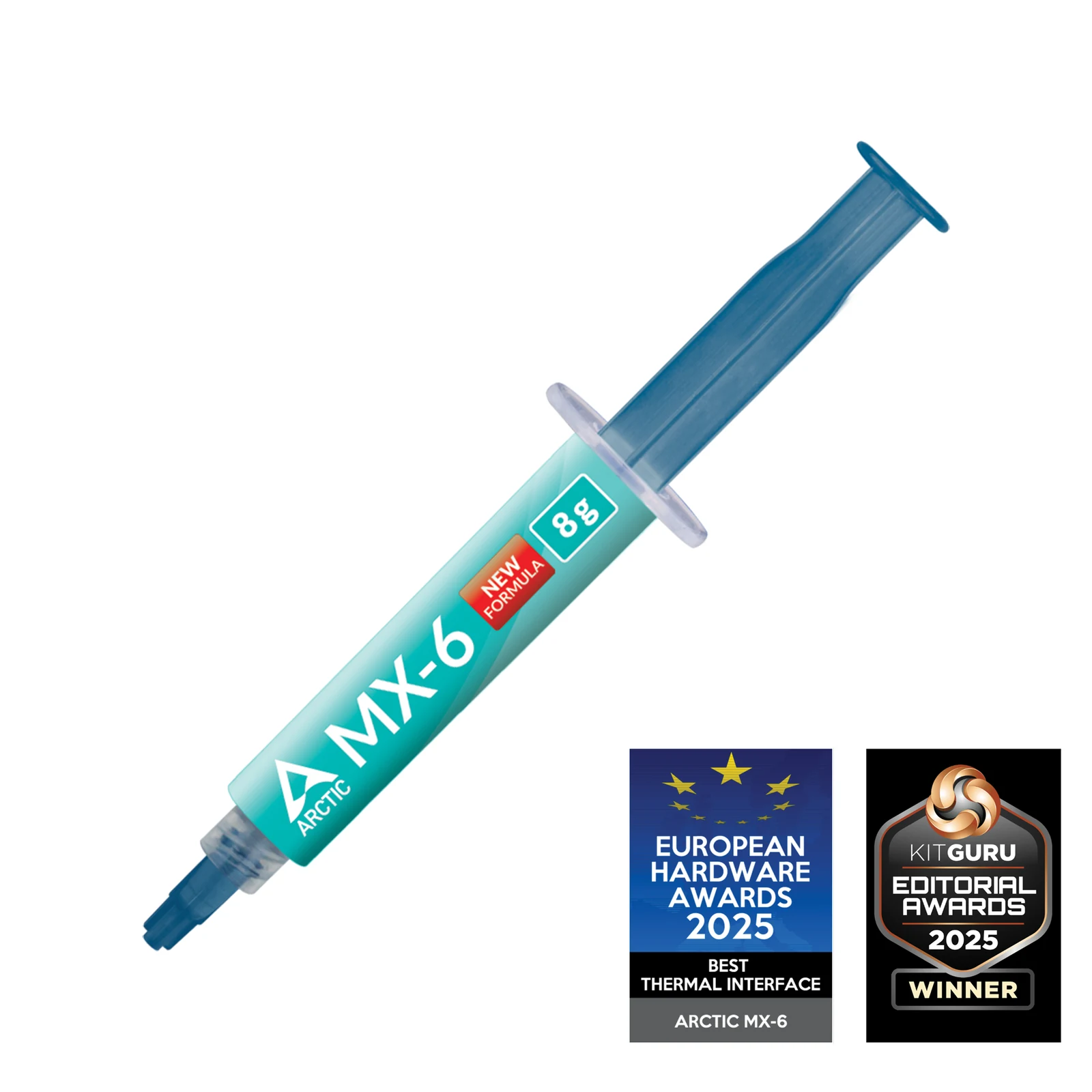
A pricing quirk that looks like a typo and is not: when we checked in September 2026, the 8 gram tube of MX-6 cost less than the 4 gram one. The bigger tube was cheaper than the small one, so compare both sizes before you pick. The 8 gram tube sits in the under $25 price band.
Then the air. A case with one exhaust fan makes your cooler breathe its own heat. A five-pack of PWM fans in the under $25 price band gets you a real intake and exhaust in any mid tower. How many you actually need for your graphics card is in how many case fans your PC needs.
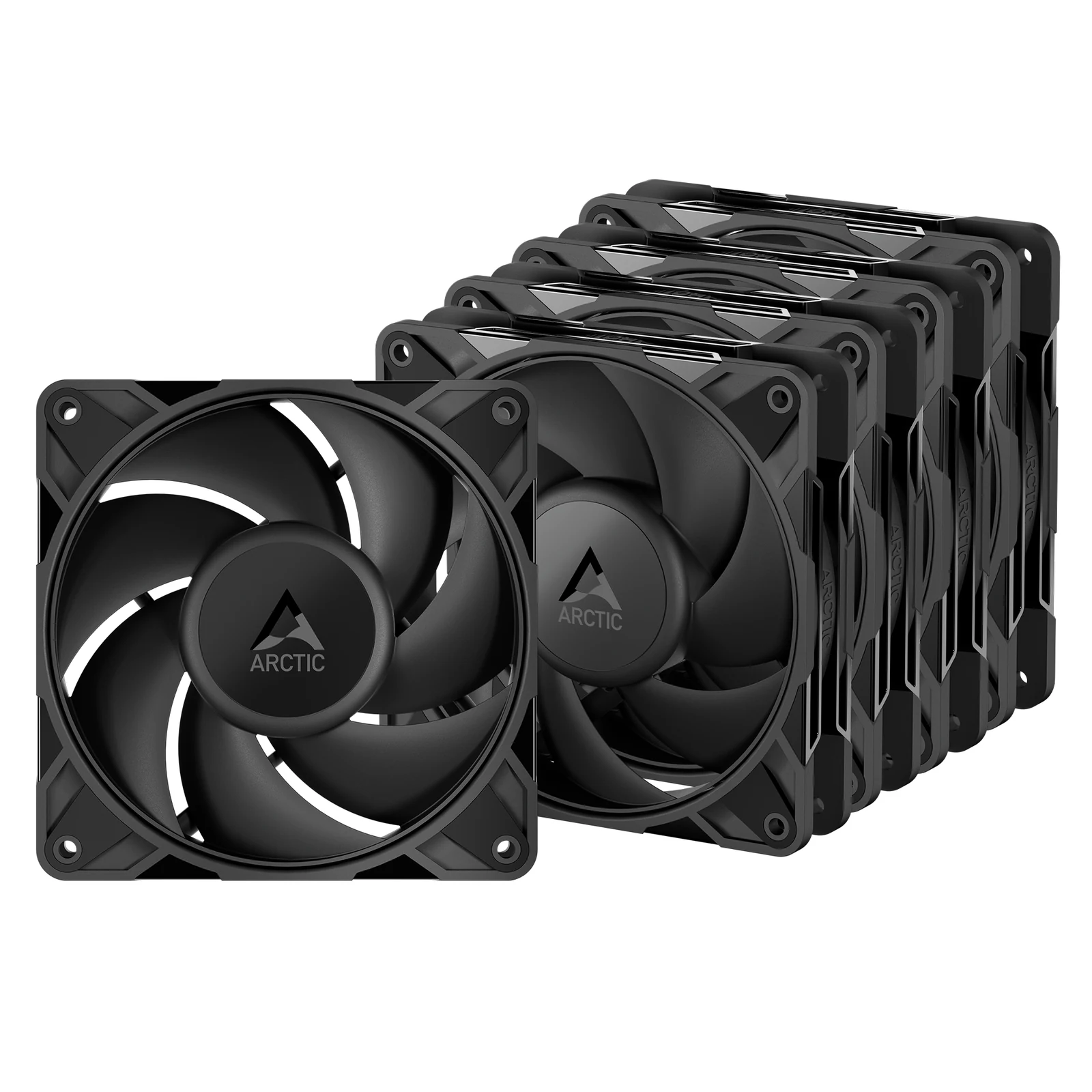
It is an easy mistake when you build piece by piece: spending on the cooler and leaving the case with the fans it shipped with. If hot air from the graphics card circles inside with nowhere to go, a new cooler will not fix it. Two intake fans at the front are the cheaper thing to try first.
Step 2: new cooler, sometimes new case
If you have cleaned it, repasted it, sorted the airflow and the processor is still pinned, now it is hardware. And let me be blunt: for most of the processors people actually game on, a cheap air cooler does the job. Liquid is not automatically better. It is better when space, noise or a high end chip ask for it. And if the CPU runs hot, the fix often starts with the right cooler for its TDP.
The cheapest one worth owning, for a Ryzen 5 or a Core i5, costs less than a game:
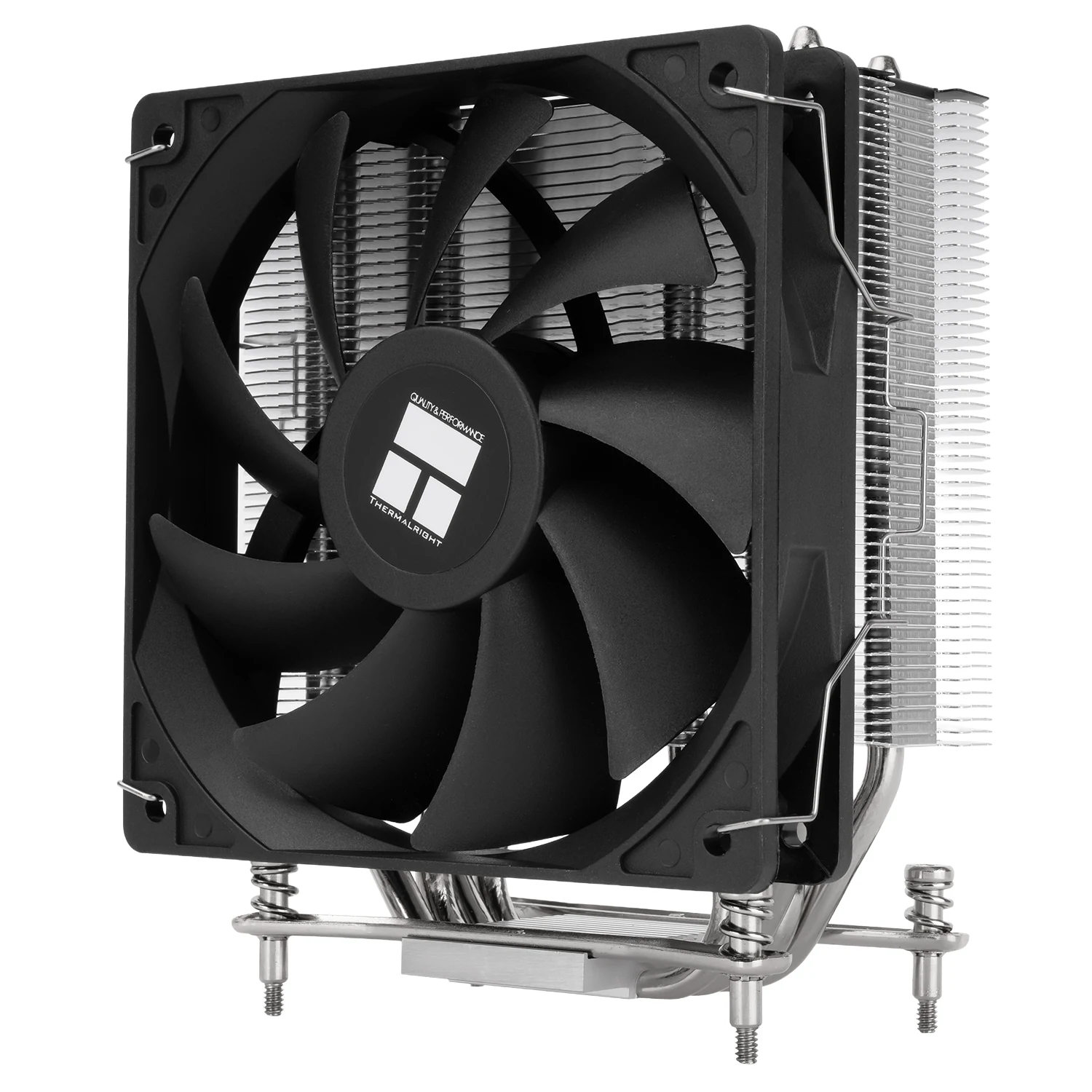
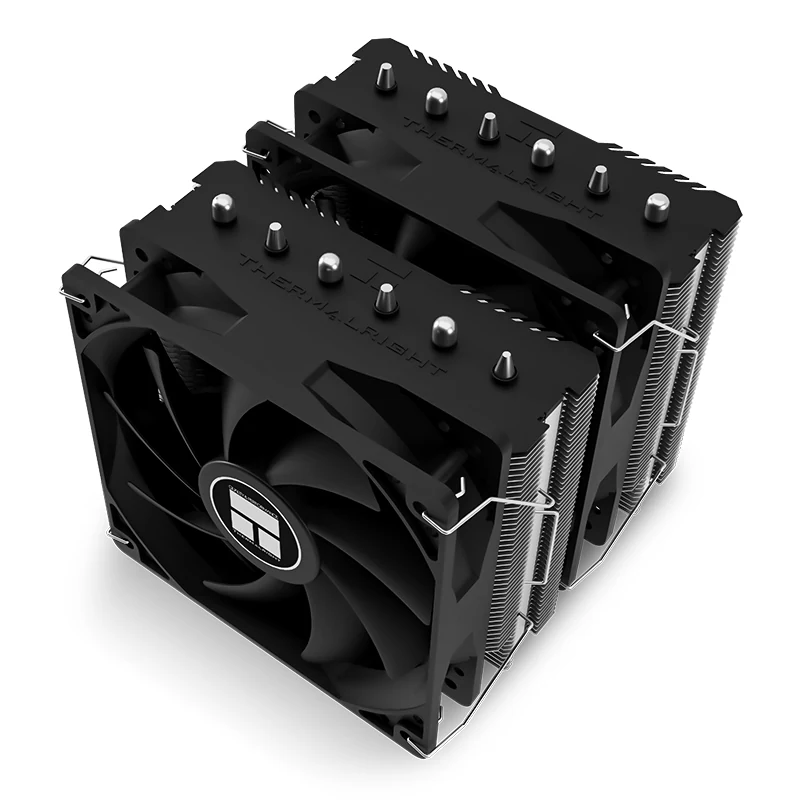
The dual tower is what I would put in most builds. In the $25 to $40 price band it brings six heat pipes and two 120 mm fans, and it has no pump that can die in three years:
If your case is short on headroom, or you want the heat pushed straight out through a radiator, a 240mm AIO is the sensible entry:
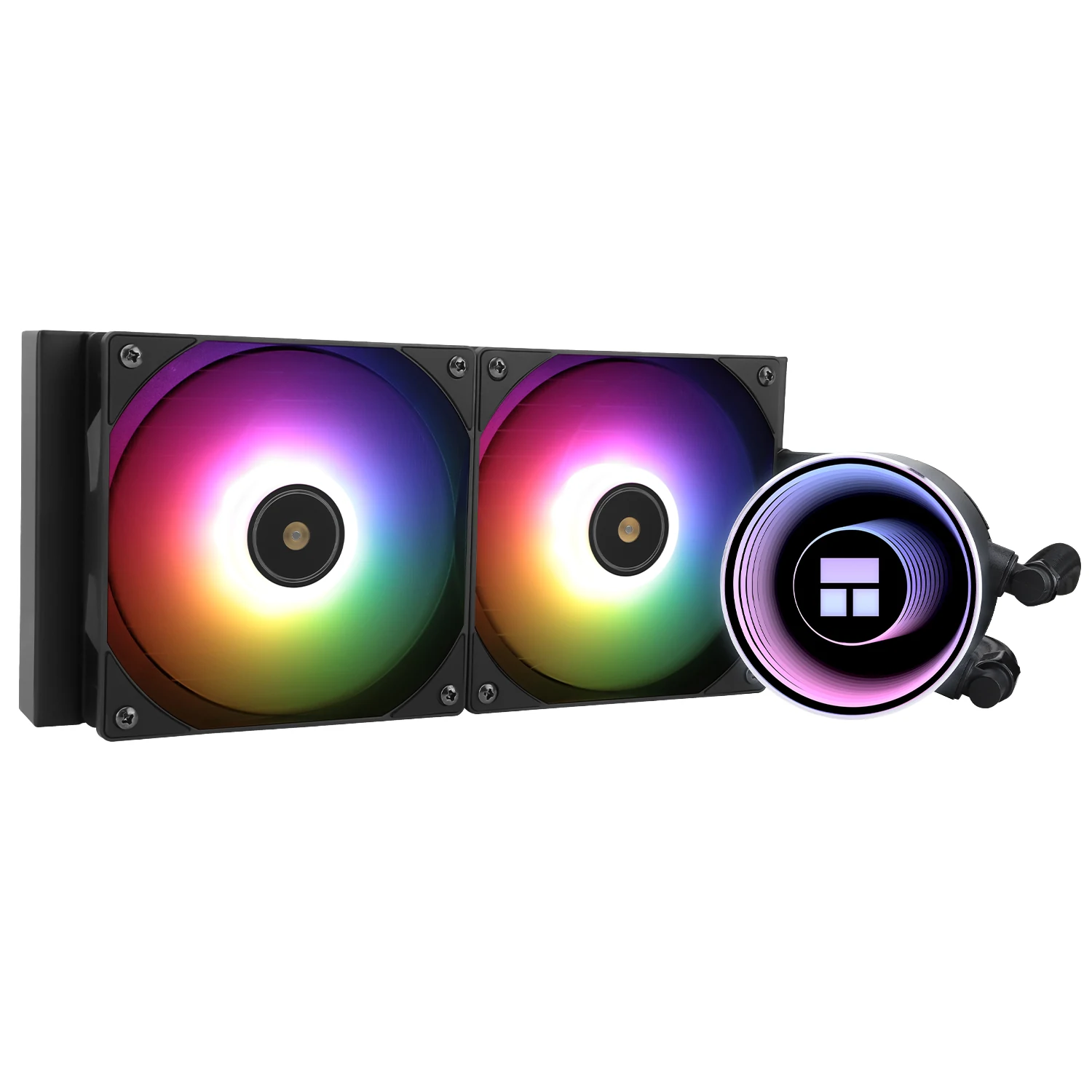
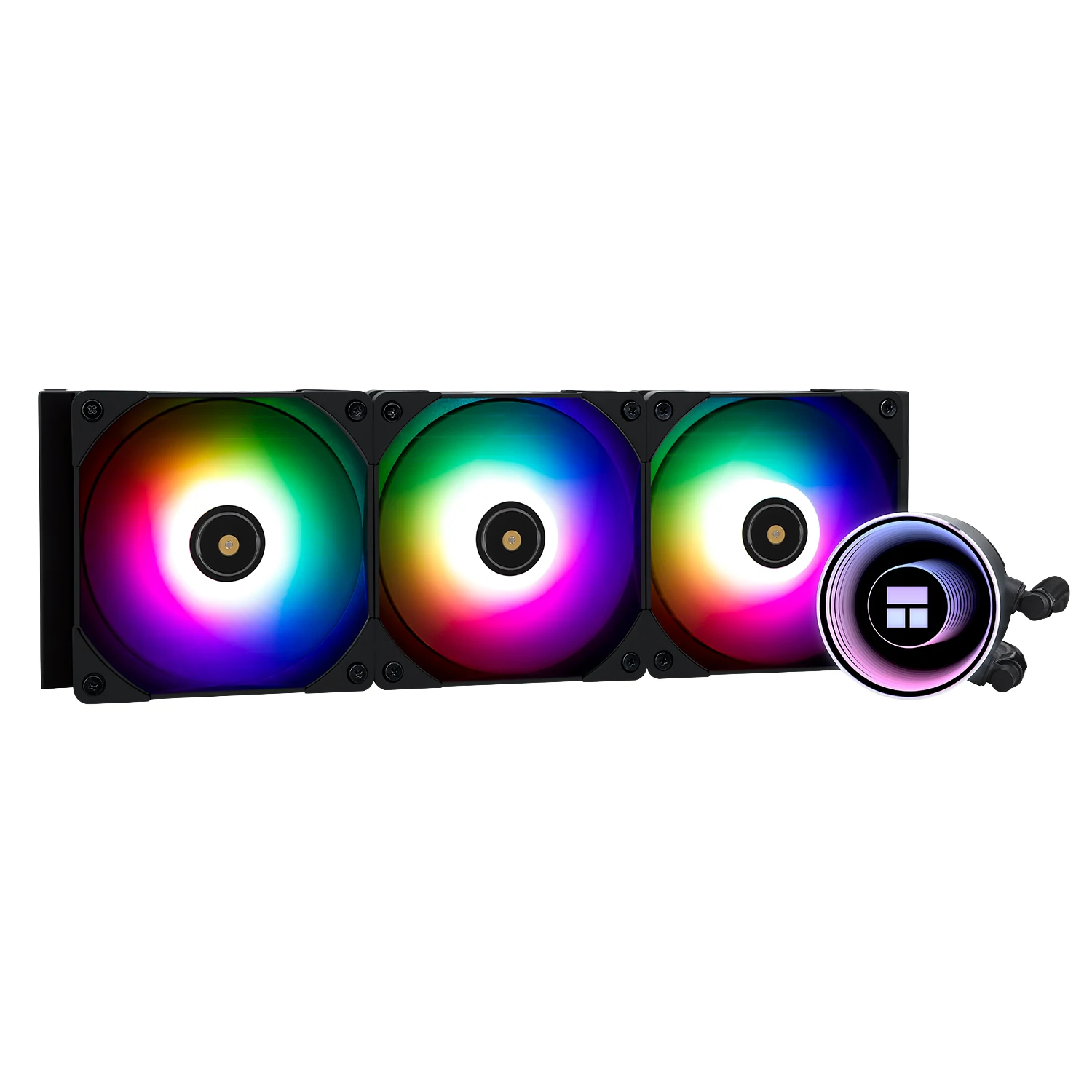
Heads up on this bit of math, because it saves the most wasted money: the same model in 360mm cost only a few dollars more than the 240 when we checked in September 2026. Very little money for a third more radiator. If your case has a 360 mount, there is nothing to discuss.
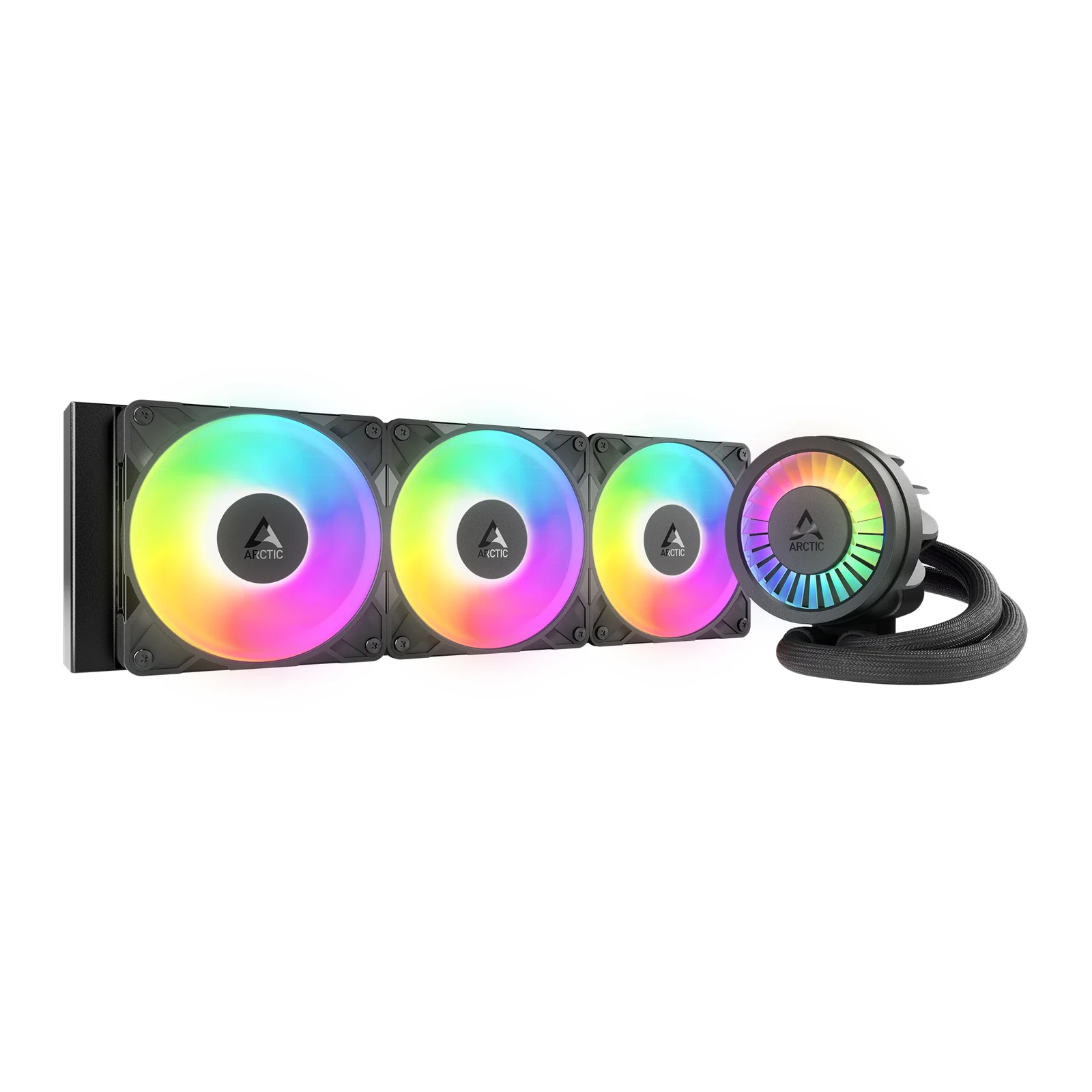
And for a Ryzen 9 or a Core Ultra 9 with an overclock, where you genuinely want headroom to spare:
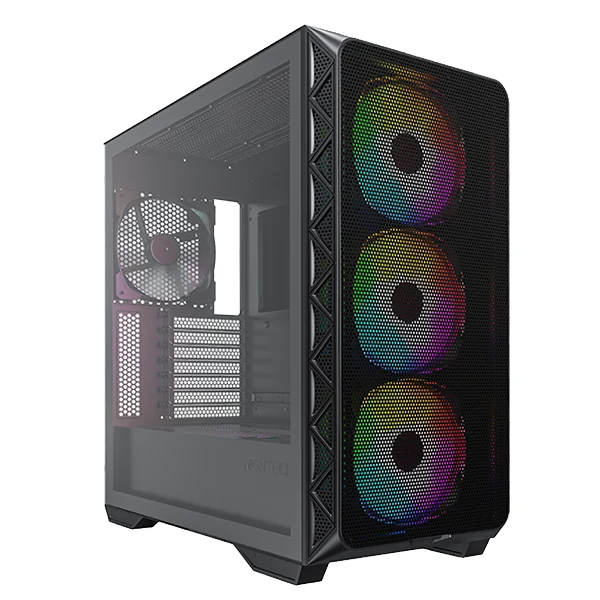
Now, if temperatures are still high after all of that, the case itself may be the wall. A sealed glass front suffocates any cooler. A mesh front changes the whole picture:
When heat is not the problem
It happens a lot: someone sees 88 degrees, decides that is why the game stutters, spends on cooling, and the frame rate does not move a single frame. If your processor holds its clocks and the game still stutters, what you have is something else. We wrote the test to rule it out step by step in the two minute CPU bottleneck test, and it takes less time than reading this paragraph twice.
If instead you are building from scratch and want the machine to run cool from day one, part order matters more than the cooler: that is in the part by part gaming PC build guide, and the parts themselves live in our catalog and in the builder.
Questions that come with 90 degrees
Will 95 degrees damage my Ryzen over time?
Within spec, no. AMD designed Ryzen 7000 and 9000 to operate there, and the chip protects itself by dropping clocks before anything is at risk. What shortens a chip life is sustained high voltage, not temperature on its own.
What software do I measure this with?
HWiNFO64 in sensors mode for everything, or MSI Afterburner with RivaTuner if you want it overlaid on the game. Both are free. Measure after 20 minutes of gaming, not on the desktop.
How often do I replace thermal paste?
Every three or four years under normal use. Sooner if the machine lives somewhere hot, or any time you pull the cooler off for another reason: once it is off, you repaste, you do not remount it on the old layer.
Does liquid cooling beat air?
A 360mm AIO beats almost any air tower, yes. A cheap 240mm AIO often does not: a cheap dual tower matches it and has no pump. Buy liquid for space, noise or a high end chip, not on faith.
Can I see the hot spot on my RTX 50 somehow?
Yes, since July 2026. CPUID's free HWMonitor reads it from version 1.65.1 and HWiNFO from version 8.52 (August 25), according to their own version notes. Update the one you use; if yours still does not show it, go by the three indirect signs above.
How we choose
We do not have a lab and we will not pretend otherwise. Safe limits come from AMD, Intel and NVIDIA specs, readings from free tools like HWiNFO and GPU-Z, and the hidden hot spot sensor on the RTX 50 series from repair technicians and hardware press. Fixes go from free steps, cleaning and airflow, to paste, fans, a cooler and a case, each from its maker page. Laptops stayed out because their limits and fixes work differently. No brand pays to appear here.
I write every guide with the help of AI tools for research and drafting; I decide which products make the cut, check every figure against the manufacturer’s spec sheet and the price on the day I verify it, and sign the text. — Samuel